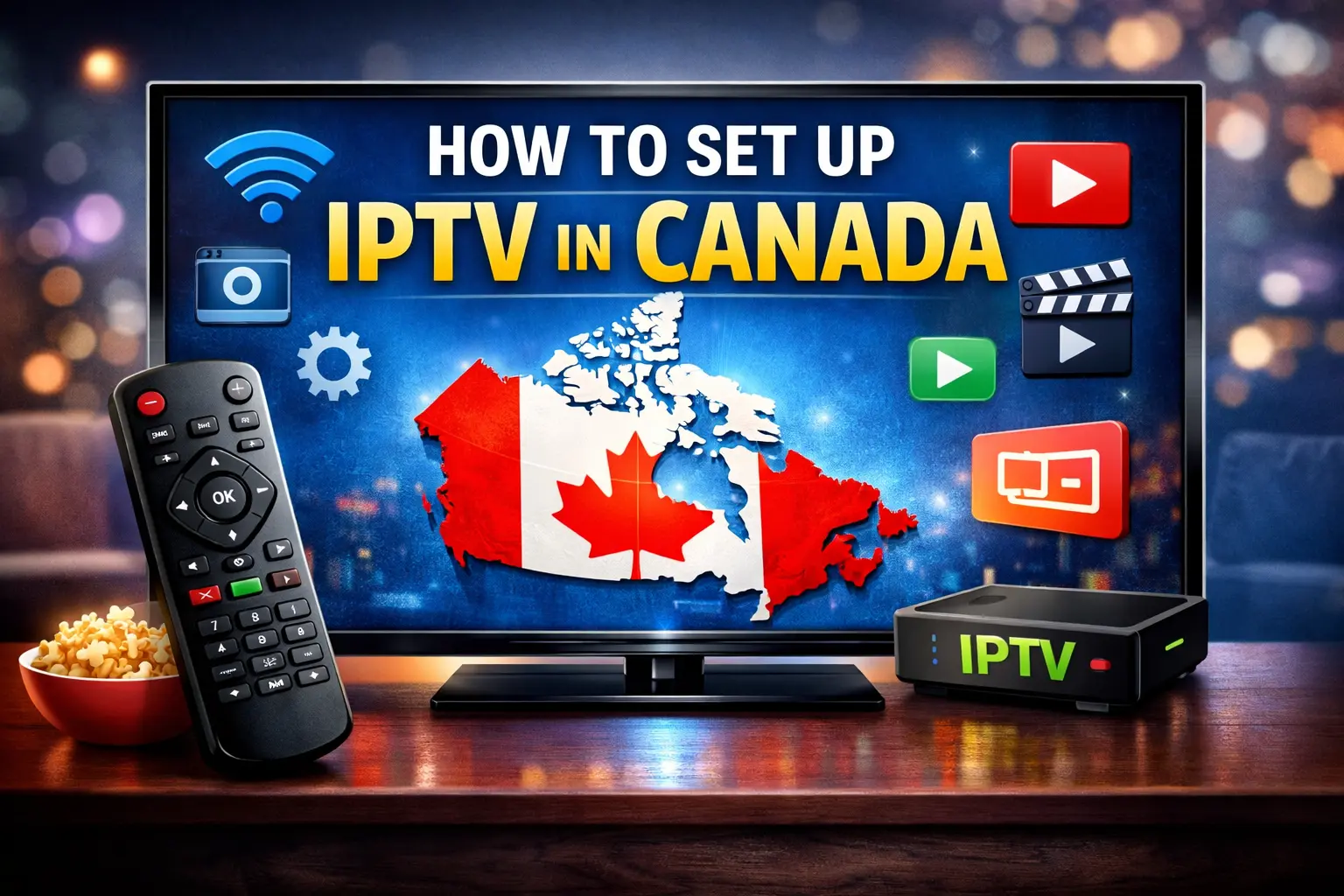
How to Set Up IPTV in Canada: A Complete Step‑by‑Step Guide
IPTV, or Internet Protocol Television, has become one of the most popular ways to watch live TV and on-demand content over the internet. Unlike traditional cable or satellite, IPTV uses your internet connection to deliver television programming directly to your device. For Canadians, this provides flexibility, access to international channels, and often lower costs compared to traditional TV services. If you are new to IPTV in Canada, this guide will provide a clear, step-by-step approach to setting it up safely and effectively.
Before starting, it’s helpful to understand the basics of how IPTV works. In essence, it streams content using internet protocols rather than standard broadcast methods, which allows you to watch television on Smart TVs, phones, computers, and streaming devices. You can learn more about how IPTV technology works on Investopedia. Additionally, understanding Canadian broadcasting rules is important; the CRTC explains media regulations that help ensure your service is legal and safe.
1. Is IPTV Legal in Canada?
Legality is a common concern for anyone considering IPTV. Using a licensed provider ensures that you are within Canadian law. Legal IPTV services have the right to stream the channels they provide, protecting you from potential fines or disruptions. Unauthorized services, which offer premium channels without permission, are illegal. Choosing a reputable provider is not just safer but also improves reliability and streaming quality.
2. What You Need Before Setting Up IPTV
To ensure a smooth setup, you must prepare both equipment and connection. Without the right setup, streaming can become frustrating.
Minimum Requirements
- A reliable internet connection: Standard-definition streams require at least 5 Mbps, HD streams need 10–15 Mbps, and 4K streaming usually requires 25 Mbps or higher. Check recommended internet speeds for streaming by Canadian ISPs for detailed guidance.
- Compatible devices: Smart TVs (Samsung, LG), Fire TV / Firestick, Android devices, iPhones/iPads, Windows PCs, or Android TV boxes.
- IPTV subscription: Your service will provide login credentials, such as an M3U playlist URL or Xtream Codes API information.
By ensuring you meet these requirements, you will prevent common buffering and connectivity issues that many new users face.
3. Choosing the Right IPTV Provider
A reliable provider is crucial. The right choice affects the number of channels available, streaming stability, and overall satisfaction.
What to Consider
- Extensive channel lineup, including Canadian content
- Accurate and user-friendly EPG (Electronic Program Guide)
- Strong reliability and uptime
- Quality customer support
- Transparent pricing
- Multi-device compatibility
When signing up, make sure to verify that the provider’s content is legally licensed. This ensures both safety and consistent performance.
4. Step‑by‑Step Setup Guide
Once you have chosen a provider and verified your internet speed, you are ready to install IPTV.
A. Fire TV / Firestick Setup
- Turn on your Fire TV or Firestick and navigate to Settings → My Fire TV → Developer Options.
- Enable Apps from Unknown Sources.
- Install the Downloader app from the Amazon Appstore.
- Enter the URL for the IPTV app APK (such as TiviMate or Smarters Pro).
- Launch the app and input your M3U playlist or API credentials.
- Enjoy watching your channels instantly.
B. Android / Android TV Box
- Open Google Play Store.
- Download an IPTV player like TiviMate, XCIPTV, or Smarters Pro.
- Open the app and enter your credentials.
- Start watching live TV and on-demand content without delay.
C. Smart TVs (Samsung / LG / Others)
- Access the App Store on your TV.
- Install an IPTV app such as Smart IPTV or SS IPTV.
- Enter your M3U playlist or API login.
- Explore channels with a clear and easy-to-use interface.
D. iPhone / iPad / Apple TV
- Open the App Store.
- Search for apps like GSE Smart IPTV or IPTV Smarters.
- Install the app, then input your subscription credentials.
- You can now watch IPTV anywhere in your home or on the go.
E. Windows / Mac
- Download and install a compatible IPTV player.
- Enter your M3U playlist or API login.
- Access live channels and on-demand content without additional devices.
F. MAG Box / Portal Setup
- Connect the box to your TV and internet.
- Enter your portal URL and MAC address.
- Start streaming immediately after authentication.
5. Performance Optimization
Enhancing your IPTV experience requires small but important adjustments:
- Buffer size: Larger buffers reduce interruptions.
- Network choice: Ethernet connections provide more stable performance than Wi-Fi.
- Organize channels: Group favorites or create categories for easier navigation.
- EPG updates: Keep your program guide updated to avoid missing shows.
6. Common Troubleshooting
Some issues may occur, but most have simple solutions:
- No channels appear: Double-check credentials and active subscription.
- Buffering or lag: Switch to Ethernet, lower quality, or test your internet speed.
- App crashes: Update or reinstall the app and restart your device.
7. Tips to Improve IPTV Experience
- Use high-quality IPTV apps with EPG support.
- Choose a provider that allows multi-device streaming.
- Test your internet speed regularly.
- Explore parental control settings for family-friendly viewing.
8. Frequently Asked Questions (FAQs)
Q1. What internet speed is needed?
Standard definition: 5 Mbps, HD: 10–15 Mbps, 4K: 25 Mbps+.
Q2. Can I use IPTV in Canada on multiple devices?
Yes, most subscriptions support several simultaneous streams.
Q3. Difference between M3U and Xtream Codes API?
M3U: simple playlist for channels.
Xtream Codes API: provides channels, VOD, and program guides with one login.
Q4. How to fix buffering?
Lower stream quality, use wired connection, or upgrade internet speed.
Q5. Do I need a VPN for IPTV in Canada?
A VPN can improve privacy but should not bypass legal restrictions.
Q6. How to watch Canadian channels?
Select an IPTV provider offering Canadian network packages.
9. Extra Tips and Recommendations
- Explore multi-device management to use IPTV across home devices.
- Consider parental controls for safer content for children.
- Keep apps updated for security and new features.
- Label your favorite channels to access them faster.
Moreover, once you have successfully set up your IPTV, it is important to regularly monitor and maintain your system to ensure consistent performance. For instance, updating your apps frequently not only adds new features but also fixes potential bugs that could disrupt streaming. In addition, checking your internet speed from time to time helps prevent buffering issues, and if necessary, switching between Wi-Fi and Ethernet can further optimize your viewing experience. Furthermore, organizing channels and favorites allows you to navigate quickly, which enhances overall convenience. In the same way, exploring parental control settings ensures that content remains suitable for all family members. Finally, by combining these small yet effective adjustments, you can maximize both reliability and enjoyment, making your IPTV experience seamless and enjoyable throughout the day.
Conclusion
Setting up IPTV in Canada is straightforward when you follow the correct steps. From picking a legal provider to optimizing your settings, you can enjoy live TV, sports, and movies on multiple devices with high reliability. With preparation, the right apps, and careful configuration, your IPTV experience can rival traditional cable services.
What Internet Speed Do You Need for IPTV in Canada? Complete Guide 2026 - neoflixhd.com
May 14, 2026[…] need help installing apps, entering login details, or setting up your device properly, this IPTV setup guide for Canada can help you get started step by […]